
| Course | Microprocessor Based Product Design |
|---|---|
| Course Number | 00340032 |
| Ido Fang Bentov | Nir Karl |
|---|---|
| CLASSIFIED | CLASSIFIED |
| CLASSIFIED | CLASSIFIED |
Station Number: 8
Battery Number: 10
Team Number: #1
Notes:
All videos and code are supplied with the
1. SISO Velocity Control
1.1 System Identification
We recorded motor step responses by applying a square wave PWM signal (

Figure HW2.1: Recorded data of the four motors response to a square wave PWM signal.
The recorded data shows all four motors responding to the square wave input. We observe:
- Motors 1 and 4 have similar positive responses
- Motors 2 and 3 have inverted responses (due to their mounting orientation)
- All motors reach steady-state within approximately
1.2 Model Fitting
We fitted a first-order transfer function model to each motor:
where

Figure HW2.2: System identification results for the four motors.
Identified Parameters (averaged across motors):
| Parameter | Value |
|---|---|
The bottom-left plot shows excellent agreement between the fitted model (dashed red) and measured response (solid blue) for a
1.3 PI Controller Design
Based on the identified model, we designed a PI controller to achieve the specified performance:
- Rise time:
- Target step command:
Design Approach:
Using pole placement for a desired damping ratio
| Parameter | Calculated Value | Used Value |
|---|---|---|
| 3.2 | ||
| 10.2 |
Note: In practice, we used higher
and values than the calculated ones to achieve better tracking performance and faster disturbance rejection. The simulated closed-loop response (bottom-right plot) shows the expected behavior with the calculated gains.
1.4 Simulation vs Measured Comparison
The simulated closed-loop step response demonstrates:
- Rise time:
- Minimal overshoot (
- Zero steady-state error (due to integral action)
2. Cart Kinematics Control
2.1 Kinematics Implementation
We implemented Mecanum wheel inverse kinematics to convert cart velocities
where:
Coordinate System:
2.2 Real-Time Control via UART
We developed a MATLAB GUI (kinematics_gui.m) for real-time control:
Commands sent via UART:
  vel <vx> <vy> <wz>	- Set cart velocities
  state 6			   - Enable kinematics mode
3. Trajectory Following Control
3.1 Implementation Overview
Trajectory following uses TIM5 Output Compare for adaptive timing. The trajectory data (generated in MATLAB) consists of:
vx_t[],vy_t[],wz_t[]: Cart velocities at each pointtt_clk[]: Time deltas in timer clock counts (17 MHz)
The Output Compare interrupt fires at each trajectory point, updating the velocity references. This allows non-uniform time spacing - slowing down at high curvature sections and speeding up on straight sections.
3.2 Figure-8 Trajectory
We generated a figure-8 (lemniscate) trajectory with curvature-based adaptive speed profile:
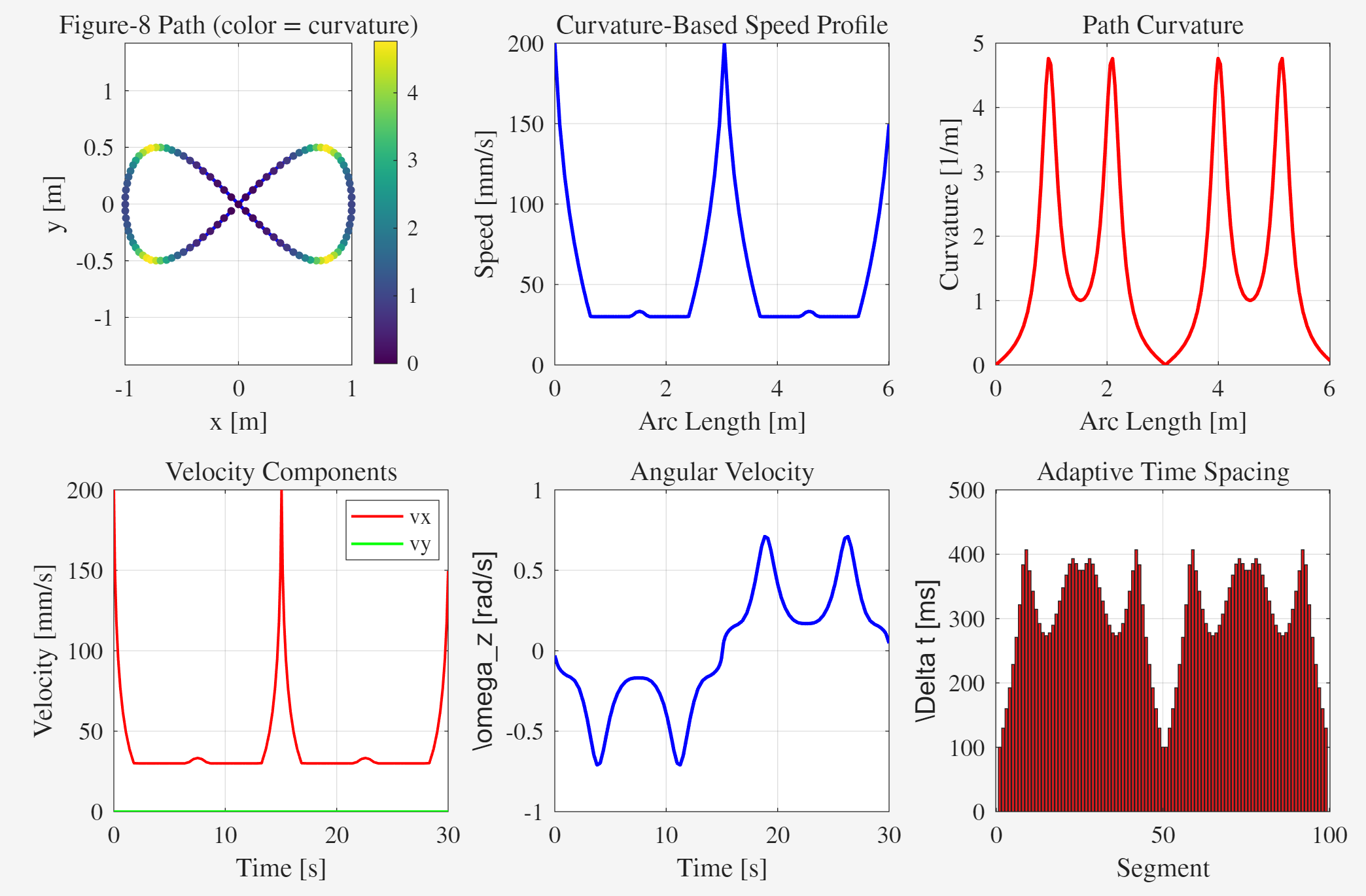
Figure HW2.3: Figure-8 trajectory.
Trajectory Parameters:
- Size:
- Duration:
- Speed range:
- Points:
The speed profile shows the cart slowing down at the center crossing (high curvature,
3.3 Custom Rectangle Trajectory
We implemented interactive point selection in MATLAB, allowing the user to click corner points that are then connected with Catmull-Rom splines for smooth corners.
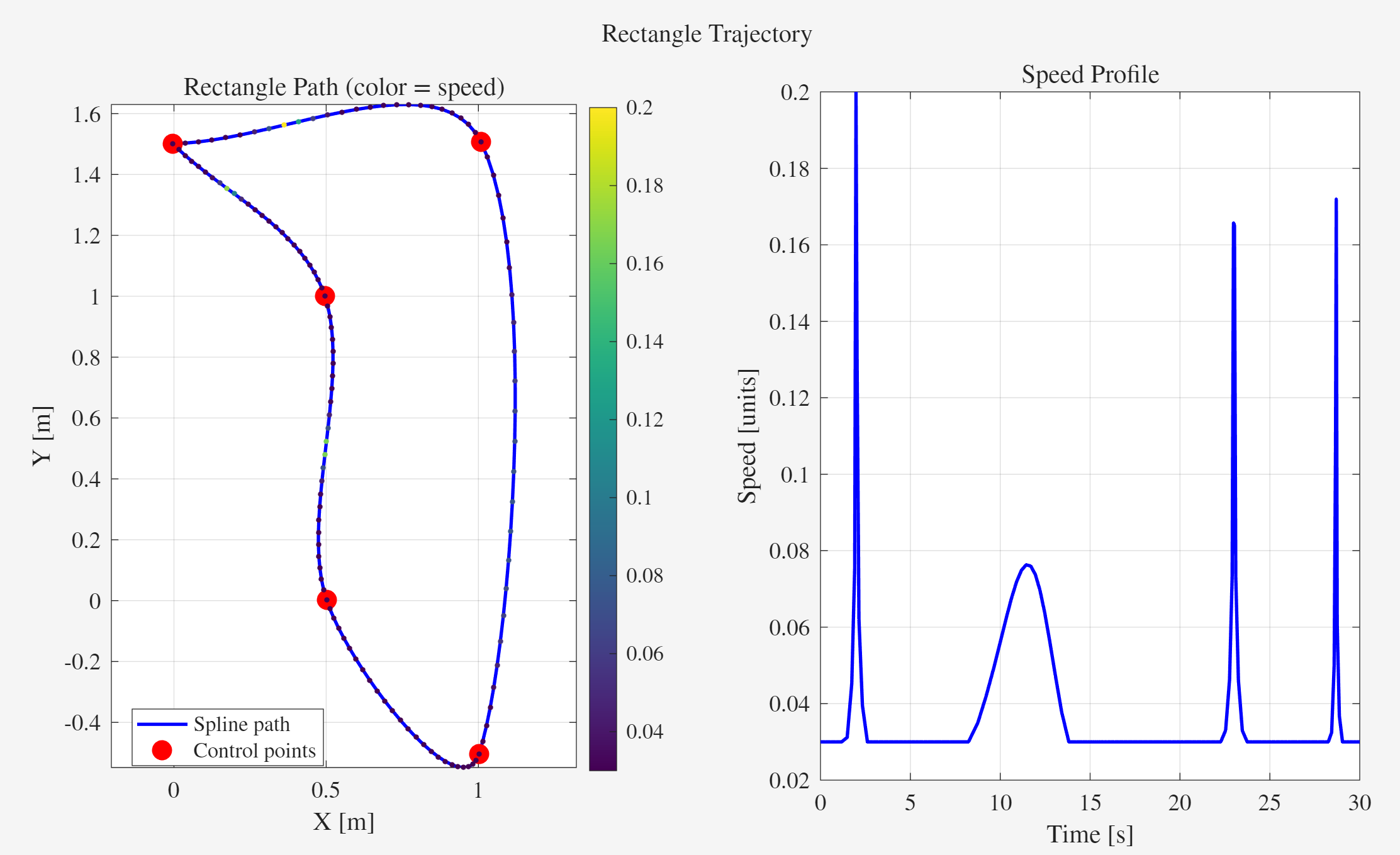
Figure HW2.4: Custom rectangle trajectory.
Trajectory Parameters:
- Size:
- Duration:
- Control points: 5 (4 corners + return)
The spline interpolation creates smooth velocity transitions at corners, visible in the speed profile spikes where the cart briefly accelerates through the corner curves.
4. Obstacle Avoidance
4.1 Implementation
The proximity sensor on PA7 is polled in the main loop. When an obstacle is detected:
- The
obstacle_detectedflag is set - In the TIM15 control loop interrupt:
- If in
STATE_TRAJECTORYorSTATE_KINEMATICSmode - And
obstacle_stop_enabledis true - All wheel references are set to zero (cart stops)
- If in
- When the obstacle is removed, the trajectory resumes from where it paused
void check_obstacle(void) {
	pSensor = HAL_GPIO_ReadPin(GPIOA, GPIO_PIN_7);
	obstacle_detected = (pSensor == 0) ^ sensor_sign;
	HAL_GPIO_WritePin(GPIOA, GPIO_PIN_5, obstacle_detected);  // LED feedback
}
4.2 Demonstration
The cart was tested during trajectory following:
- Cart follows figure-8 trajectory
- Hand placed in front of sensor
- Cart stops immediately
- Hand removed
- Cart resumes trajectory
Appendix A: Hardware Configuration
A.1 Motor Sign Configuration
Due to physical mounting orientation, motors may spin in opposite directions for the same PWM polarity. The motor_sign[] array in main.c corrects this:
int16_t motor_sign[4] = {1, -1, -1, 1}; // {RR, RL, FL, FR}To calibrate:
- Set all motors to a positive PWM (e.g.,
pwm 3000 3000 3000 3000) - Observe which wheels spin backward
- Flip the sign for those motors (change
1to-1or vice versa) - Verify: positive PWM should make all wheels spin forward
A.2 Sensor Sign Configuration
The proximity sensor may have inverted logic depending on the specific sensor model. The sensor_sign variable adjusts this:
int8_t sensor_sign = 1; // Set to -1 if sensor logic is invertedTo calibrate:
- Place hand in front of sensor
- If LED (PA5) turns on when obstacle is present →
sensor_sign = 1 - If LED turns off when obstacle is present →
sensor_sign = -1
Appendix B: UART Command Reference
Communication is via UART at \r).
B.1 State Control
| Command | Description |
|---|---|
state 1 | IDLE - Motors off |
state 2 | PWM - Direct PWM control |
state 3 | SQUARE - Record square wave response |
state 5 | VELOCITY - Closed-loop velocity control |
state 6 | KINEMATICS - Cart velocity control |
state 7 | TRAJECTORY - Follow pre-loaded trajectory |
B.2 Motion Commands
| Command | Description |
|---|---|
pwm <d0> <d1> <d2> <d3> | Set PWM directly ( |
ref <r0> <r1> <r2> <r3> | Set velocity references (encoder counts/sample) |
vel <vx> <vy> <wz> | Set cart velocities (m/s, m/s, rad/s) - auto-enters state 6 |
B.3 Trajectory Control
| Command | Description |
|---|---|
traj start | Start trajectory execution (enters state 7) |
traj stop | Stop trajectory, return to IDLE |
B.4 Configuration & Debug
| Command | Description |
|---|---|
gains <kp> <ki> | Set PI controller gains |
obstacle on | Enable obstacle stop (default) |
obstacle off | Disable obstacle stop |
status | Show current mode and parameters |
enc | Show encoder values and velocities |
send | Transmit recorded data (binary) |
help | Show command list |
B.5 Typical Usage Workflow
For kinematics testing:
vel 0.1 0 0	  # Move forward at 0.1 m/s
vel 0 0.1 0	  # Move left at 0.1 m/s
vel 0 0 1.0	  # Rotate CCW at 1 rad/s
vel 0 0 0		# Stop
For trajectory execution:
traj start	   # Start pre-loaded trajectory
				 # (trajectory runs automatically)
traj stop		# Emergency stop if needed